Access, Access Levels, and the Schedule
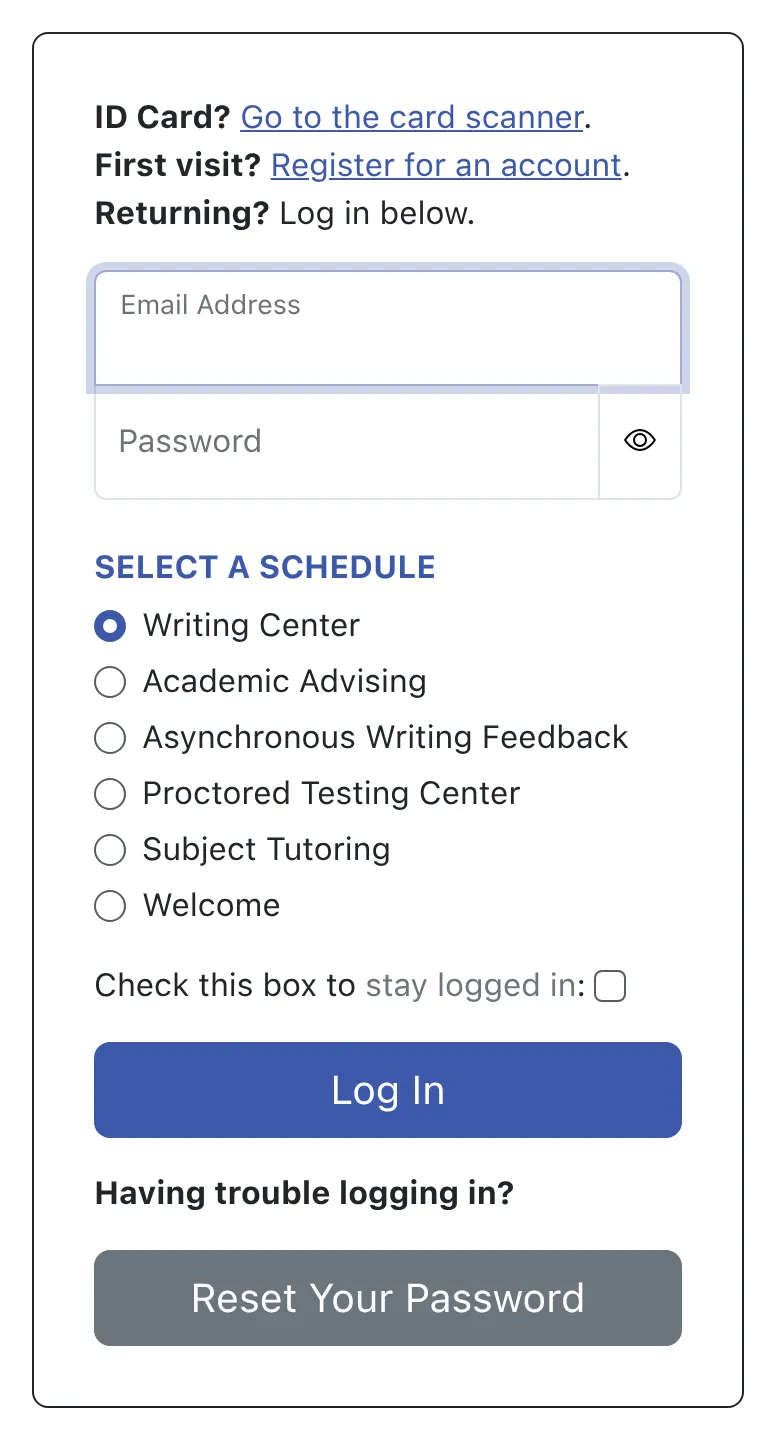
Within WCONLINE, everyone who logs in to the system has to create an account by filling out your registration form (as defined in Form Setup: Registration Form) or has to access an account that was created by an administrator for them. Typically, individuals can create their account by filling out your registration form by following the “First visit? Register for an account.” link on your WCONLINE login page. Administrators can also create an account by using the ADD NEW CLIENT tool within the Calendar Display or Standard Display “area tools” menu or at the top of Client & Record Management.
If you’ve enabled Single-Sign-On or LDAP in Global System Settings, then individuals will log in to WCONLINE using their institutional credentials. If they’ve never accessed the system before, they’ll be taken to your registration form in order to create their new account and answer your registration questions. If they have accessed the system before, then they’ll be taken directly to your schedule.
- WCONLINE is fully responsive and will display content differently based on the screen size of the device being used to interact with the program. For example, the login page will display announcements to the right of the login prompt on larger screens. On smaller devices, WCONLINE will make announcements visible via a “Looking for more information? View the announcements” link below the login form.
- WCONLINE is completely accessible. All menus, menu options, fields, alert prompts, and schedule slots have been properly coded with aria labels and have been tested via a variety of text-readers and other accessibility programs. Additionally, WCONLINE intentionally doesn’t rely on color to convey meaning and provides tools for accessing things like the calendar via a text-only format (referred to as the “Standard Display”).
- If your center has a kiosk or computer where clients or staff check in upon arrival at your center, consider using a card reader with WCONLINE in order to let individuals log in and check in by swiping an institutional ID card.
- If you want to add announcements or information to the login page, such as information on center policies or special programs, you’ll use Announcement Management to add a login-page announcement.
- If an individual has trouble registering for an account on the system, ask the individual what error message they’re seeing when they try. Error messages are explicit in WCONLINE and state exactly why a registration, for example, is being denied.
Once an individual logs into the system, they’re recognized by their email address as one of three types of system users: A client (on non-administrator), a Basic Administrator, or a Full Administrator. Administrative access itself is bestowed using the Administrative Access Management control panel, which is available at the top of Staff & Resource Management. Administrative access can be granted or taken away at any time.
- If an individual is unable to log in because their account is disabled, check and modify the status of their account in Client & Record Management.
- If an individual forgot their password, ask them to use the password reset tool at the bottom of the login area on the login page. After a client enters their email address in the password reset tool’s prompt, they’ll immediately receive an email with a code to paste or type onto the login page, which refreshes with instructions on completing the password reset. If a client doesn’t receive the email, ask them to check their spam folder, or you might choose to change the individual’s password for them in Client & Record Management.
- If, as recommended only on a private computer, an individual uses the option to “stay logged in,” they will remain logged in for about 30 days at a time, unless they log out. On any page that they can access in WCONLINE, they can leave the page inactive, go to another website and return to WCONLINE, or close the browser, and they will still be logged in when they return.
Full Administrators, Basic Administrators, and Clients
Section titled “Full Administrators, Basic Administrators, and Clients”Full Administrators are typically center directors or managers and have access to all of the features and control panels within WCONLINE. Because of their full power over WCONLINE, we recommend limiting the number of full administrators as much as possible. Full administrators have complete access to all data on your system—including the ability to export all data via the System Data Export tool. They can also make appointments without being restricted by scheduling or required form limits (with exceptions noted directly on the various forms). By default, full administrators are taken to the Calendar Display after logging in.
Basic Administrators, a status typically given to center employees (such as tutors, consultants, or other staff), have the ability to view all appointments, make appointments for others, enter and view client report forms, and access the control panels that they’re given access to via options in Global System Settings. By default, basic administrators do not have access to most of the control panels in WCONLINE and cannot delete large amounts of information from the system. Basic administrators, though, can make appointments for students in excess of most scheduling limits and do not have to fill in most required fields (with exceptions noted directly on the various forms). By default, basic administrators and clients are taken to the Standard Display after logging in.
Clients are non-administrators or, in most cases, students who are using the services of your center. Clients only have access to their own data within WCONLINE and can only see their own appointments. Clients do not have access to any of the administrative options on your various forms or to any of the administrative control panels within the Welcome menu. Clients also cannot access post-session client report forms about their appointments (as those forms are only available to administrators. In essence, clients can create and manage their account and make and manage their own appointments.
- If you want to add or remove administrative access, adjust the individual’s listing in Administrative Access Management.
- For more information on the vocabulary of WCONLINE, such as why we use ‘clients,’ review the vocabulary of WCONLINE.
- If a staff member isn’t being recognized as an administrator or doesn’t have access to administrative functions, check the email address that they’re using to log in and compare that to the email address listed for them in Administrative Access Management.
- If some staff members aren’t receiving copies of appointment confirmation emails (and if you want them to), ensure that you’ve set up this functionality.
- If clients aren’t receiving emails sent through WCONLINE (such as confirmations and reminders of their appointments), check your settings and contact your IT department.