Duplicate Staff or Resources
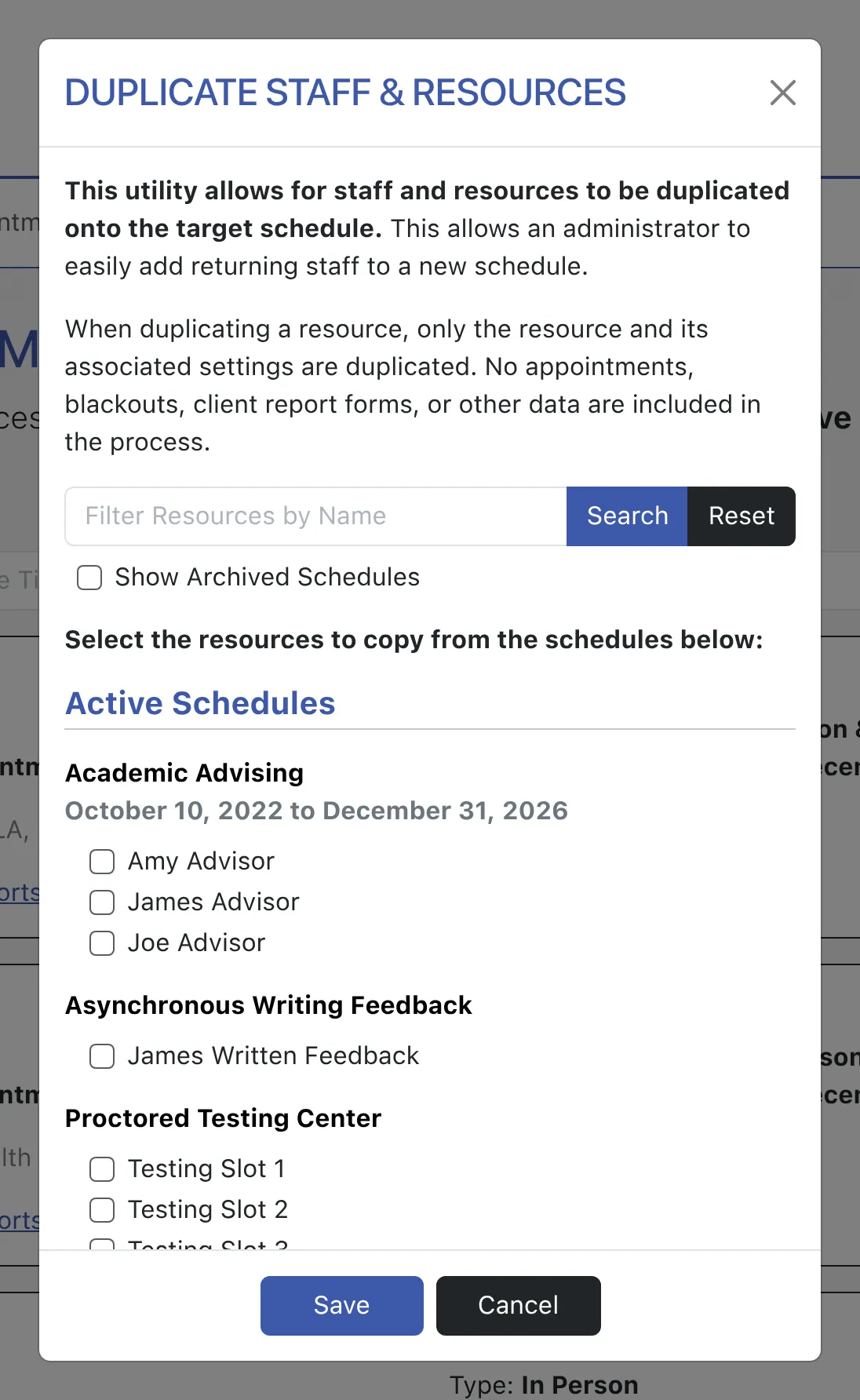
This tool is primarily used when creating a new schedule for a new scheduling period. After adding a new schedule in Schedule Management, you’ll add new staff and duplicate returning staff (via this tool) onto that new schedule in Staff & Resource Management. Then, you’ll add your staff and resource schedules using Starting Availability Management.
When duplicating a staff or resource, only the staff or resource and its associated settings are duplicated. No appointments, client report forms, or other data are included in the process. Finally, staff and resources can only be duplicated from and to schedules that have an Availability of either “Available to Everyone” or “Available to Administrators Only” in Schedule Management. If you want to work with staff and resources that are attached to a schedule that has been hidden or archived, you’ll first need to edit that schedule in Schedule Management to change its Availability to something other than “Hidden / Archived.”
Using Duplicate Staff & Resources
Section titled “Using Duplicate Staff & Resources”Filter Resources by Name: At the top of the tool, you’ll find a search box that lets you narrow the displayed list of staff and resources by name. As you type, only matching staff or resources remain visible, which is useful when you have many schedules with many staff and want to quickly find a specific person to duplicate.
Show Archived Schedules: By default, the duplicate tool only displays staff and resources attached to your currently-available schedules. If you’d like to copy returning staff from a hidden or archived schedule (such as a previous semester’s schedule) without first un-archiving that schedule, check the SHOW ARCHIVED SCHEDULES option to expand the list to include them.
Select Resource or Resources to Copy: Below the filters, you’ll see a list of staff and resources that appear on your currently-available schedules (and on archived schedules if the option above is checked), grouped by schedule. To copy one or more of those resources to a new schedule, select the checkbox next to the staff and resource name or names.
Select Target Schedule: Once you’ve selected the staff and resources that you want to duplicate, select your new schedule from this field. Then, select the “duplicate resources” button. WCONLINE will then make copies of the selected resources and add them as new resources on the new schedule.