Announcement Editor
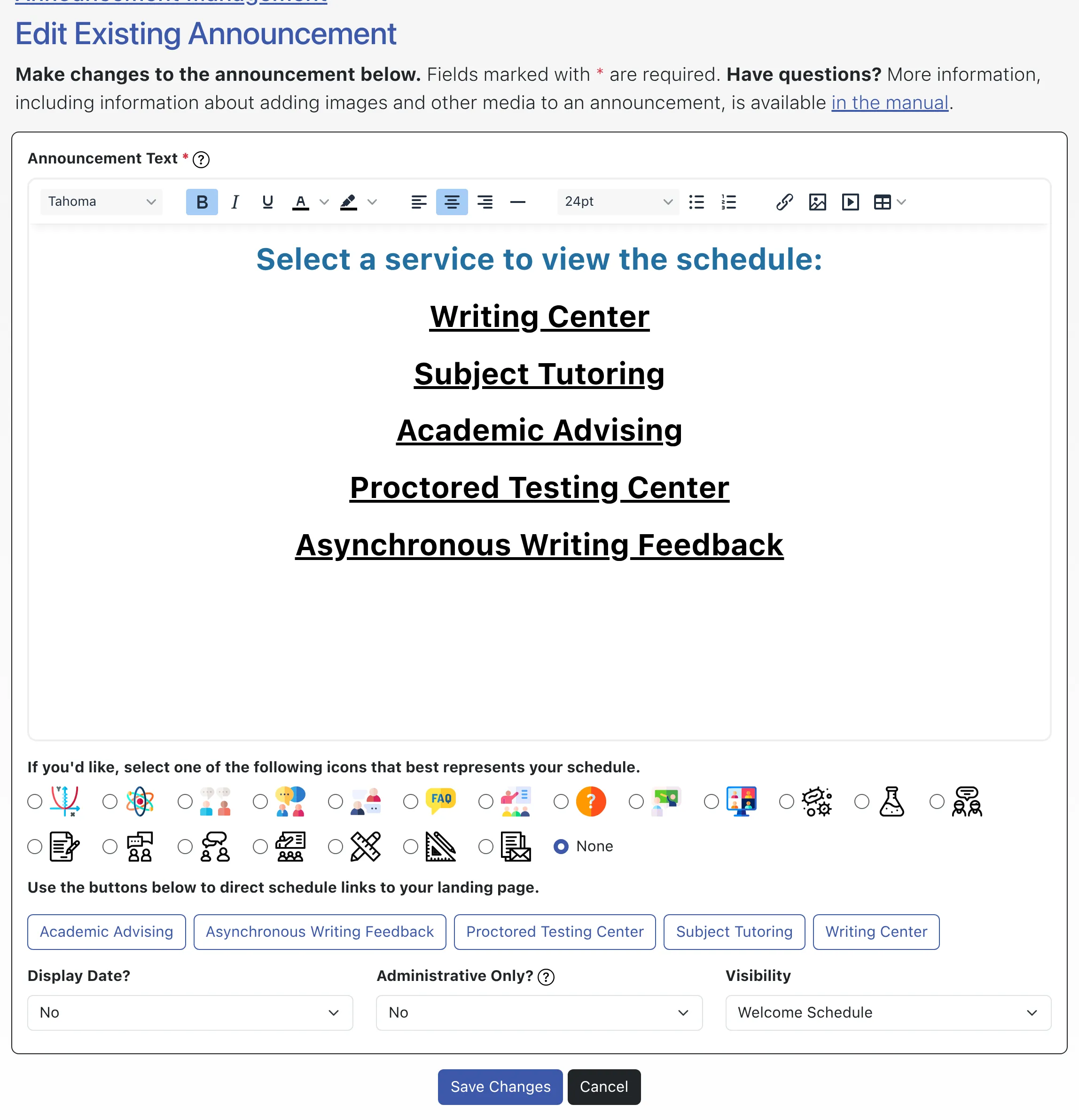
The announcement editor lets you format announcements, optionally add images, videos, and tables, and configure display options. Announcements appear on all devices and screen sizes. Include text within announcements rather than using an image alone, so that visitors using accessibility devices can read the content in WCONLINE. After composing or editing an announcement, select “Add Announcement” or “Save Changes” to save and publish it immediately within WCONLINE.
Note that announcements are always displayed from the most recently added to the oldest. Therefore, if you want a given announcement to appear on the top of a list of announcements, you would need to add it last. You can also control the order by grouping all of your announcements into a single announcement and then simply editing that single announcement to control the display.
Announcement Text: This is the announcement as displayed on your site. You can use the what-you-see-is-what-you-get editor to format your message (or you can compose the message in a word processor and then copy it into the editor, which will retain most formatting). The editor also allows you to upload or paste images and, with the table icon, to insert a table (such as a grid of your hours of operation). A table is easier for screen readers and read-aloud tools to follow than a picture of one. Finally, if you have a video that is available publicly online, you can include it by entering the direct link or embed code after selecting the “film” icon.
Display Date: This determines whether or not the date that an announcement was added or last edited is displayed with the announcement. If set to “No,” then the Announcement Text is displayed without any additional information (such as the date).
Administrative Only: Announcements are typically available to everyone. If you would like an announcement to be only shown to basic and full administrators, then set this option to “Yes.” Only announcements that are set to appear on a schedule or on all schedules (as set below) can be set to be available to administrators only (as WCONLINE doesn’t know if someone is an administrator until after they log in and, therefore, can’t display login page announcements to administrators only).
Visibility: This setting determines where the announcement will appear:
- LOGIN PAGE: If this option is selected, the announcement will be displayed to the right of the login form on the main login page when viewing the page from devices with larger screens. On smaller screens (and from most accessibility devices), the announcements are available via a link that reads, “Looking for more information? View the announcements.”
- ALL SCHEDULES: If this option is selected, the announcement will be displayed at the top of every schedule when viewing the page from devices with larger screens. On smaller screens (and from most accessibility devices), the announcements are available via a link that reads, “Looking for more information? View the announcements.”
- [SCHEDULE TITLE] SCHEDULE: If this option is selected (where “[SCHEDULE TITLE]” is the name of one of your schedules), then the announcement will be displayed only at the top of the selected schedule when viewing the page from devices with larger screens. On smaller screens (and from most accessibility devices), the announcements are available via a link that reads, “Looking for more information? View schedule-specific announcements.”