Announcements Overview
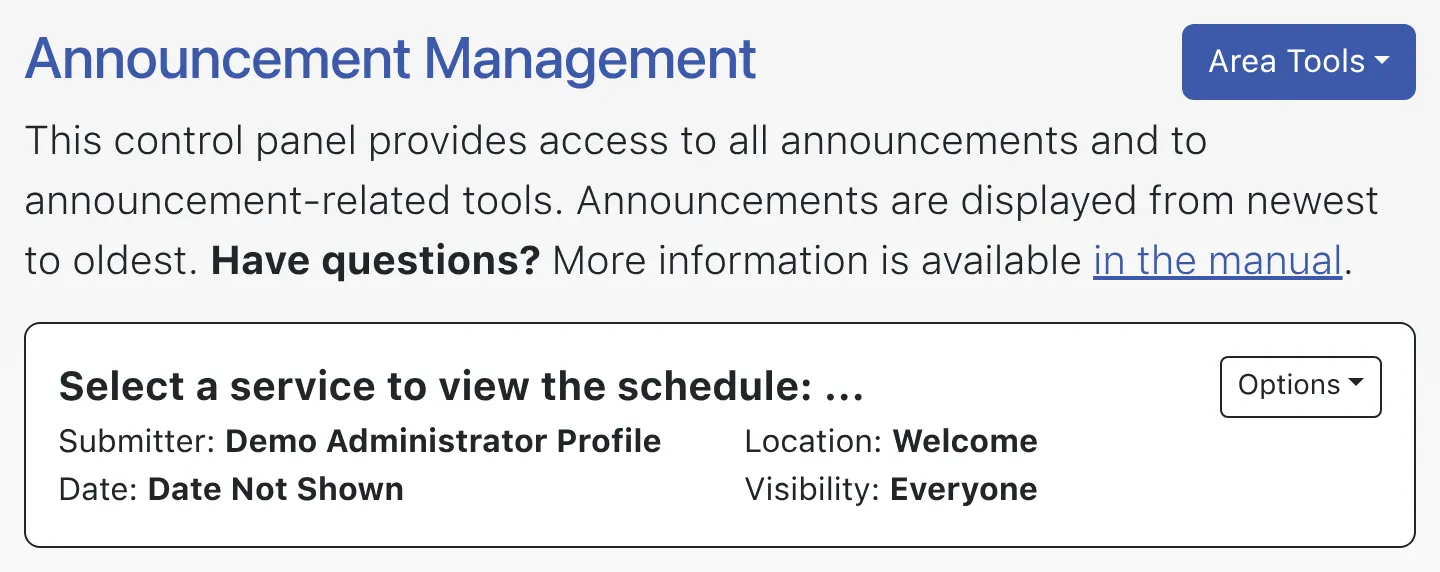
The announcements overview screen shows all current announcements that are saved on your system. Current announcements are those that are displayed on the login page and those that are displayed at the top of schedules that have an Availability of either “Available to Everyone” or “Available to Administrators Only” in Schedule Management. If you want to work with announcements that are attached to a schedule that has been hidden or archived, you’ll first need to edit that schedule in Schedule Management to change its Availability to something other than “Hidden/Archived.”
The announcements overview shows a truncated version of the announcement’s first line or lines. Beneath that is a display that shows the following:
SUBMITTER: This is the first and last name of the administrator who entered the announcement.
DATE: If the Display Date option (as discussed below) was set when adding or editing an announcement, then this shows the date that the announcement was added or most recently edited.
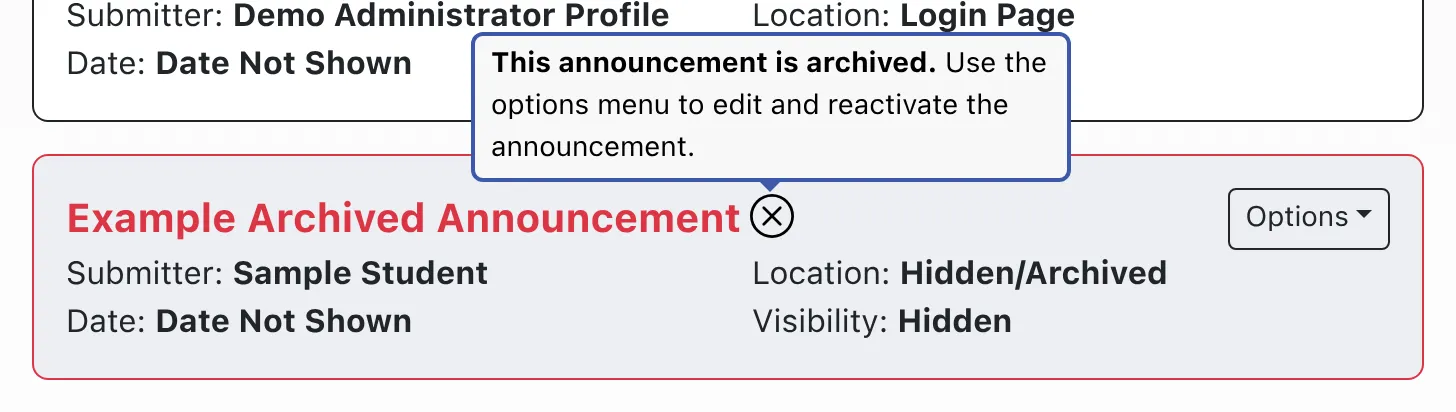
LOCATION: This shows where the announcement appears: on the login page, on all schedules, or on a specific schedule. If an announcement is hidden or archived, the “location” and “visibility” will both show “hidden.”
VISIBILITY: This shows whether or not an announcement is available to everyone, available to administrators only (as set by the Administrative Only option when adding or editing an announcement), or hidden/archived.
To the right of every announcement is the “Options” menu. That menu allows you to perform specific actions related to the announcement:
EDIT ANNOUNCEMENT: Selecting this link will take you to the announcement editor with the editor populated with the announcement itself (allowing you to make changes to existing announcements).
HIDE/ARCHIVE ANNOUNCEMENT: Selecting this link will set the Visibility of the announcement to HIDDEN/ARCHIVED. This prevents the announcement from showing up on schedules or the login page, while preserving the announcement data. Hidden or archived announcements are still displayed in Announcement Management.
DELETE ANNOUNCEMENT: Selecting this link, which is available to administrators only, will permanently delete the announcement once you confirm your intentions to do so.
At the bottom of the announcement overview, you’ll also find two options that define how the overview itself is displayed:
PER PAGE: By default, the system shows five announcements per page. If you would like to see ten or twenty-five announcements per page, select the applicable number and the display will automatically update.
PAGE: If you have more announcements than what can be displayed on a single page, selecting a number after this option will show you additional announcements.