Staff & Resource Management
Staff & Resource Management allows you to add new staff and resources to your schedule, view details about your existing staff and resources, manage administrative access to your system, and configure a wide variety of resource-specific settings and restrictions. 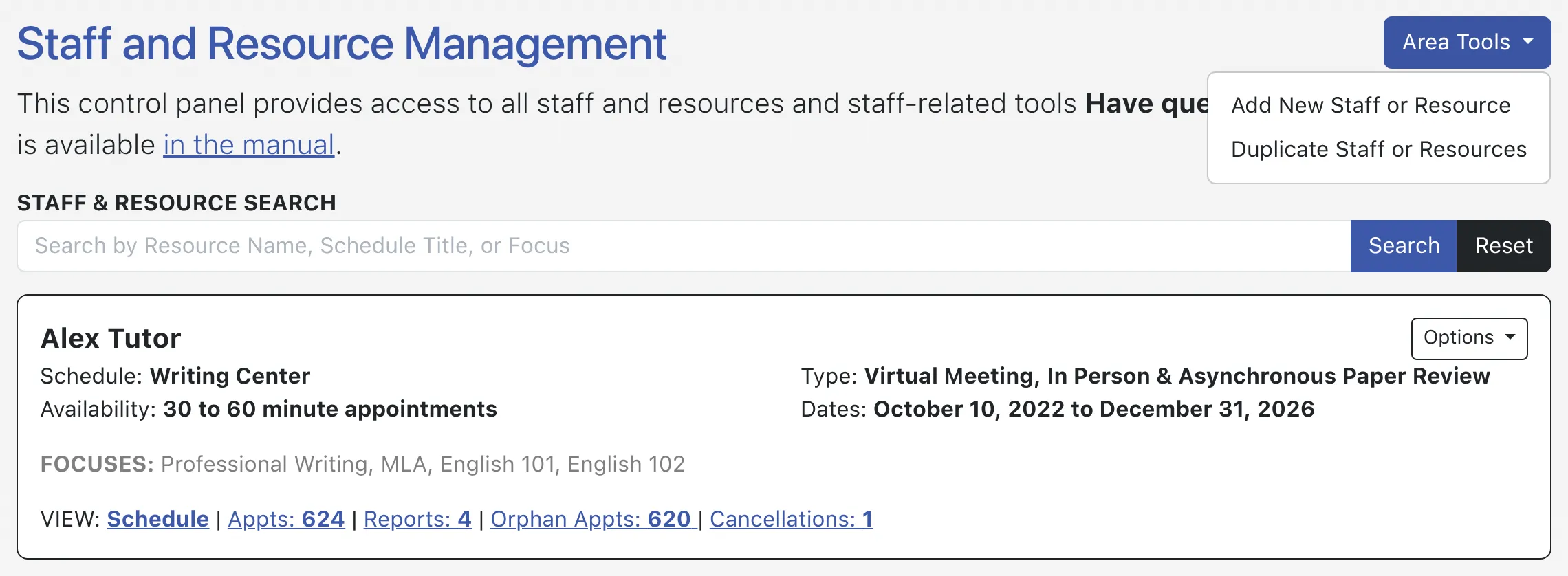
Hover over the question mark icons within the control panel for more information about each configuration option. If you still have questions about a feature after having done so, find more information on that feature by going to the section in this chapter where that feature is located (as available at the bottom of this page). Typically, a center administrator will work through the options in this control panel when adding new staff to the system or when initially creating a new schedule for a new scheduling period.
The Staff & Resource Management control panel is available under the “Schedule & Staff Management” section of the Welcome menu, and is typically available to full administrators only. The control panel opens with an overview of current staff and resources. It also provides tools for adding and editing resources, duplicating resources, and managing administrative access to the system. Select a section title in order to go to the manual entry for the options in that area.
- STAFF AND RESOURCE OVERVIEW: This section describes the options within the overview page—the first page that is displayed when you open Staff & Resource Management. The overview page provides access to all of the tools within the control panel and also displays specific information about each current staff and resource.
- ADD OR EDIT: INTRODUCTORY SETTINGS: These are the settings that appear at the top of the form when editing or adding a staff or resource. They control the name, availability, appointment length, and other general settings of each resource.
- ADD OR EDIT: STAFF & RESOURCE OPTIONS: Appearing directly below Introductory Settings when editing or adding a staff or resource, these settings control things like the appointment modality, group and walk-in appointment availability, and limits on the number of appointments allowed with each specific resource.
- ADD OR EDIT: EMAIL-SPECIFIC OPTIONS: Appearing at the bottom of the form used to edit and add a resource, these settings control actions tied to a staff or resource’s email address. These include appointment notifications, administrative access, and limits on the editing of client report forms.
- DUPLICATE STAFF OR RESOURCES: Available from the “Area Tools” menu at the top of the Staff and Resource Overview, this tool lets you duplicate returning staff and resources from an older schedule to a new schedule.
- ADMINISTRATIVE ACCESS MANAGEMENT: Available from the “Area Tools” menu at the top of the Staff and Resource Overview, this tool lets you manage basic and full administrative access to your WCONLINE system.