Blackout Times Management
- If you need to close your entire schedule for a holiday or institutional closure, use Manage Holidays & Closures, which is available within the “Area Tools” menu of Schedule Management, instead of this control panel.
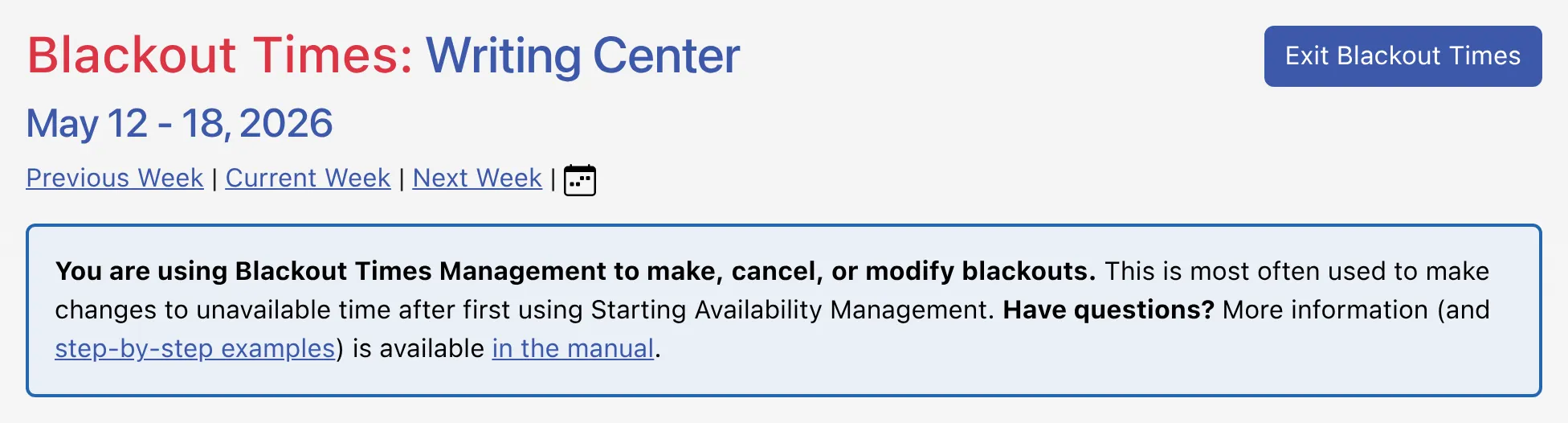
Blackouts are added, modified, or canceled via Blackout Times Management. That control panel is available via the “Area Tools” menu at the top of both the Calendar Display and the Standard Display. The control panel is typically available to full administrators only, although many centers give basic administrators access so that they can modify their own availability on the schedule.
While staff and resources who don’t work on a given day are automatically hidden on the schedule display, those staff and resources are always shown in Blackout Times Management. Once in that control panel, you’ll make changes to your schedule by adding, modifying, or canceling blackouts (in the same way that you add, modify, or cancel appointments) in order to cover or uncover available time. Since you can apply your changes to all connected days (or have them just apply to a single day), you can make schedule-long scheduling changes simple by modifying a single-day’s schedule.