Report Limits
At the top of the System Utilization Report, you’ll find several options for configuring and limiting the report. Once you make changes to the available options, select the “Update Report” button. If you want to return to the default display, select “Reset Report.”
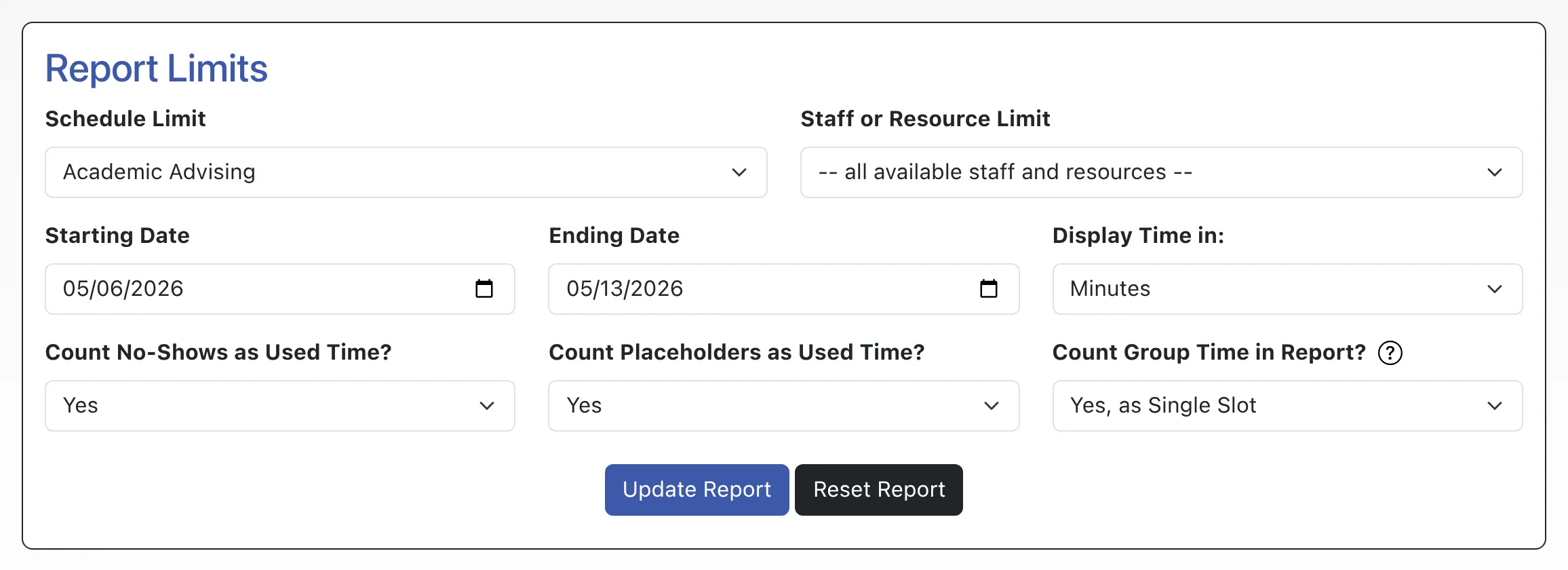
Schedule Limit: Because of substantial differences in how schedules can be configured, the System Utilization Report can only be run against a single schedule at a time. This field, which defaults to your default schedule (as set in Schedule Management), lets you select the schedule that you want to run the report against. Note that only schedules that have an Availability of “Available to Everyone” or “Available to Administrators Only” (as set in Schedule Management) will appear in this list. Finally, for schedules that have Slot Scheduling Only set to “Yes” in Schedule Management, note that each slot counts as sixty minutes of time for the purposes of calculating utilization within this report.
Staff or Resource Limit: By default, the report runs against all of the staff or resource attached to the selected schedule. If you want to see the utilization numbers for just a single staff or resource, select that staff or resource from the drop-down menu. If you change the Schedule Limit, you’ll need to run the report before you can see and choose from staff or resources on the newly selected schedule.
Starting Date and Ending Date: These limits define the dates for which the report runs. These default to the previous week. The report will show all utilization between (and inclusive of) the starting and ending dates set here.
Display Time In: This option allows you to choose whether to read the amounts of time in minutes (e.g. “3,090 min. used of 4,080 avail.”) or hours and minutes (e.g. “51:30 used of 68:00 avail.”).
Count No-Shows as Used Time? By default, the System Utilization Report counts appointments that were made and later marked as “missed” as time that was filled or utilized. This is because the slot on the schedule was reserved, wanted, or accounted for even though the client failed to show up for the meeting. If you would prefer that no-shows or missed appointments not count as filled or utilized time, select No for this option before re-running the report. Note that, if a new appointment was made in the same slot as the missed appointment, that time slot will only be counted as “filled” or “utilized” once even with this option set to Yes.
Count Placeholders as Used Time? By default, the System Utilization Report counts appointments that have been marked as “placeholders” (by selecting the “placeholder” checkbox at the bottom of the appointment form) as time that was filled or utilized. If you would prefer that placeholders not count as filled or utilized time, select No for this option before re-running the report.
Count Group Time in Report? By default (and if this option is set to Yes), the total availability is increased by the number of slots available within a group appointment. For example, if a staff or resource is available for one hour, allows five students per hour, and has one appointment in that hour, the utilization for that hour would be 20%, since one of five available appointment slots was filled.
If this option is set to Yes, as Single Slot WCONLINE will count a group slot as fully filled if it has a single appointment scheduled. This means that a one hour group slot will show as sixty minutes of available time and sixty minutes of used time regardless of whether it has one or five appointments scheduled in the same time slot on your schedule.
If this option is set to No, then all staff and resources that offer group appointments are excluded from the utilization calculations (meaning that the utilization report will only report on one-on-one appointments with staff and resources that allow only one appointment per slot as set in Staff & Resource Management).