Zoom Integration (Legacy)
In Global System Settings (which you’ll find under the “System Configuration” section of the Welcome menu), you can define a variety of system-wide settings and controls. Within the “Area Tools” menu, you’ll find links to a variety of tools that also enable global changes throughout your WCONLINE site. The final tool, “Zoom Integration,” allows you to replace WCONLINE’s Online Consultation Module with Zoom.
Zoom Integration
Section titled “Zoom Integration”This page describes the legacy Zoom integration. New configurations should use “Online Meeting Providers” (covered in the previous section) instead. This configuration is only required for sites that used the Zoom integration before the introduction of online meeting providers.
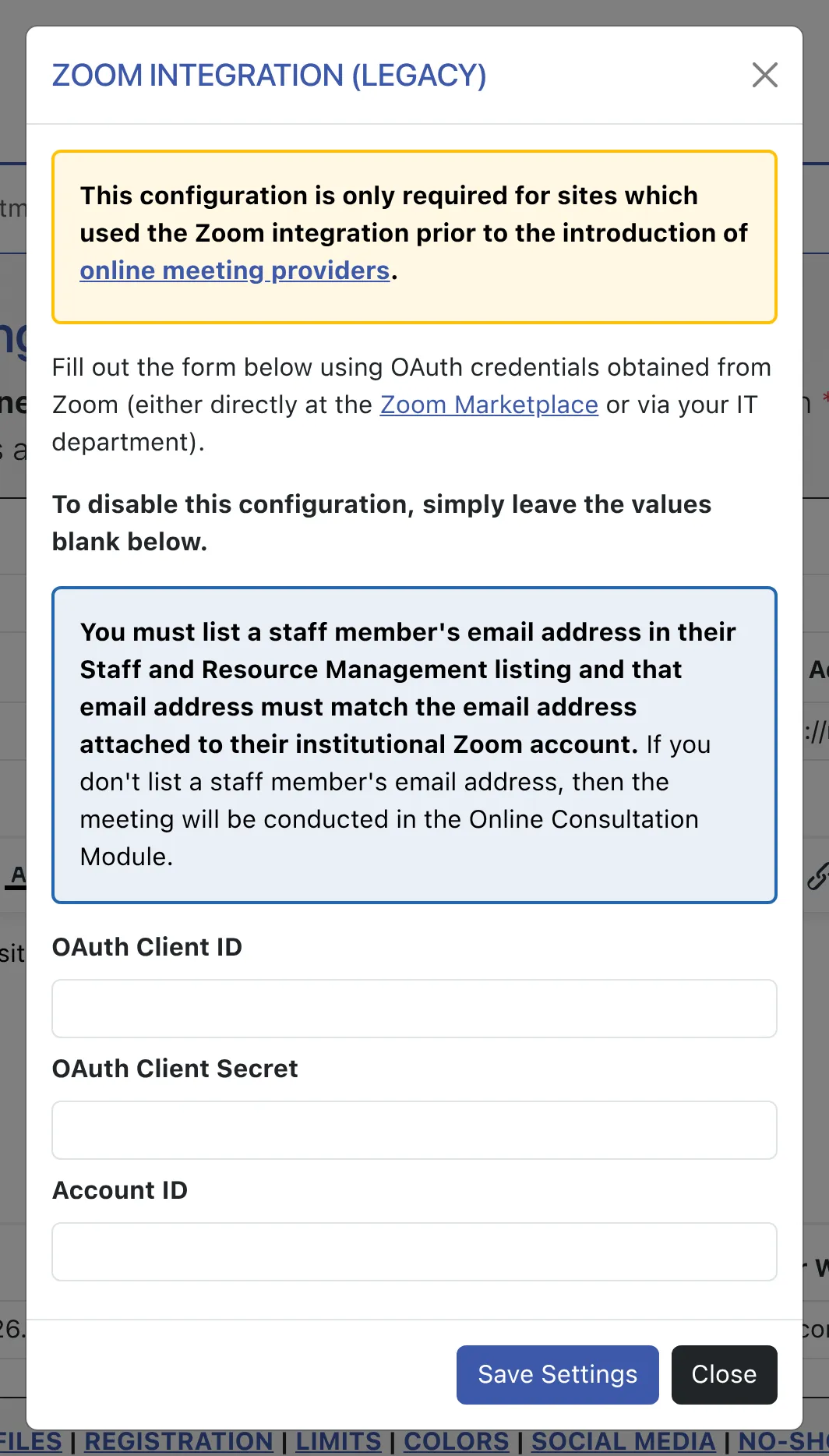
In order to replace WCONLINE’s Online Consultation Module with Zoom, you’ll need to complete the following steps. These steps require account-level access to the Zoom account and, often at institutions, require support from IT departments. While we’re certainly happy to help, the fact that all of these settings and steps are found outside of WCONLINE makes it difficult for us to provide additional instruction.
- Create an Account Level, Server-to-Server OAuth application within the Zoom Marketplace under the master Zoom account. For institutional accounts, this is typically done by the institution’s IT department. For free or standard Zoom accounts, this is typically done under the main account holder’s Zoom account.
- For scopes (permissions), grant the application the ability to View and Manage All User Meetings.
- Add the OAuth Client ID, OAuth Client Secret, and Account ID from the OAuth credentials into the corresponding fields in WCONLINE.
- List each staff member’s institutional email address under their listing in Staff & Resource Management. Then, ensure that that email address is listed under the “users” of the Zoom account (as set in Zoom’s “users” control panel). For institutional Zoom accounts, students and staff of the institution are typically listed automatically as users under the master Zoom account.
Once complete, all online sessions will be conducted through Zoom as soon as a client or staff member clicks on the “Start or Join” link on the appointment form.