Setting Up the Online Consultation Module
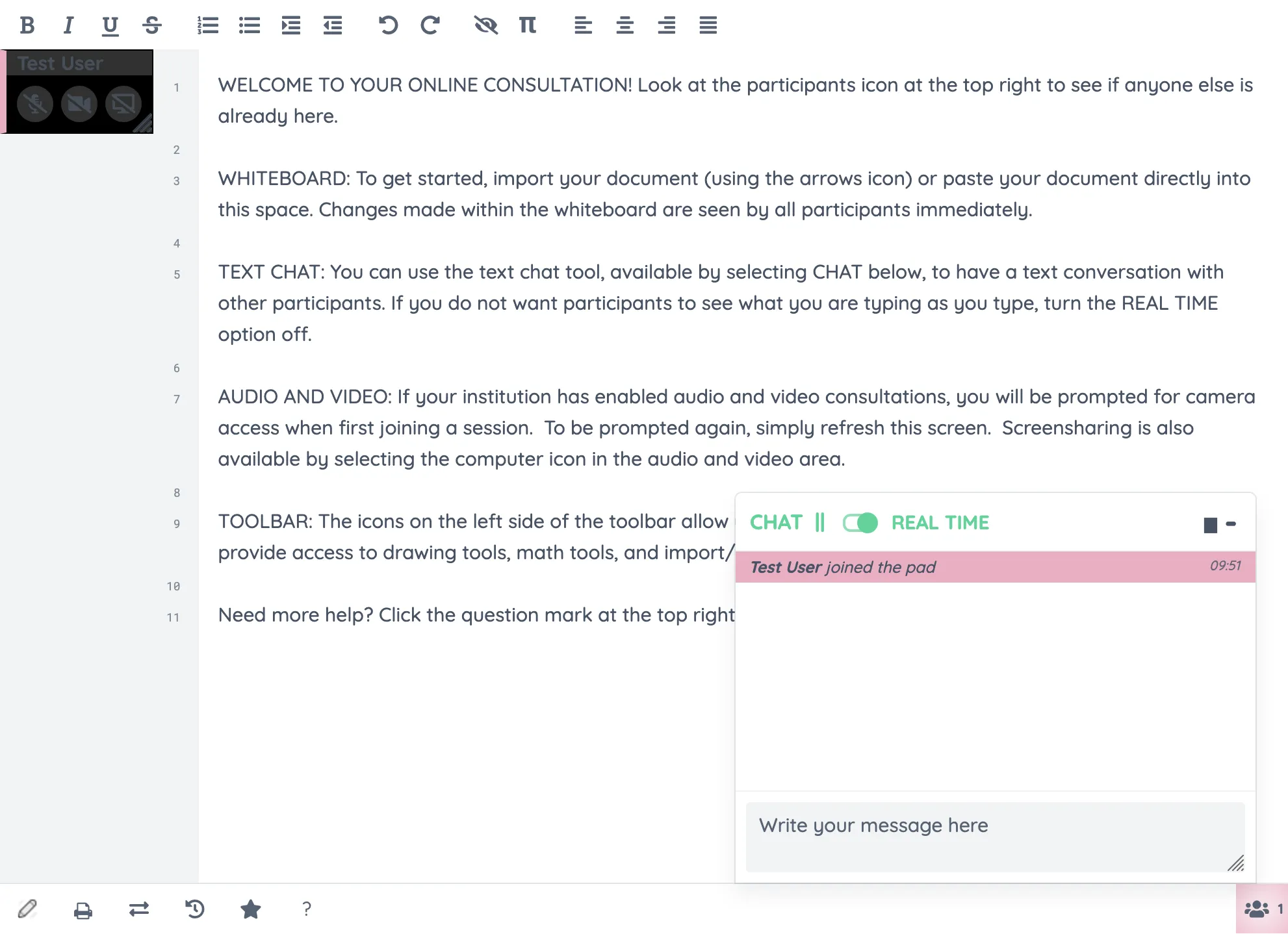
The Online Consultation Module, built into WCONLINE, provides a virtual meeting space where a staff member can meet with clients either one-on-one or in groups of up to ten participants. The Module’s main feature is a truly synchronous whiteboard where a text-based document can be manipulated in real-time (and at the same time) by all of the participants in a meeting. In addition to the whiteboard, the Online Consultation Module includes text chat, video and audio capabilities, screen-sharing, a drawing tool, and a tool designed for working on complex mathematical equations.
Unlike most features, the best customized setup of the Online Consultation Module requires that you adjust settings in a few different areas within WCONLINE depending on the features that you wish to use and on how you want the Module to be displayed. Hover over the question mark icons within the control panel for more information about each configuration option.
Turning On the Online Consultation Module
Section titled “Turning On the Online Consultation Module”The Online Consultation Module is enabled on a staff or resource basis in Staff & Resource Management. When adding a new staff or resource or when editing an existing staff or resource, you can use the following settings to enable and configure the Module.
Modality: This option allows you to define the types of appointments for which the staff or resource is available. WCONLINE allows for three types of appointments to be scheduled.
- Face-to-Face Appointments are typically appointments where a student meets with a staff member at a specific, real location for an in-person meeting.
- Online Appointments are appointments where a student and staff member meet online using the WCONLINE Online Consultation Module (or Zoom, if Zoom has been integrated with WCONLINE).
- eTutoring Appointments are appointments where a student uploads a paper for a staff member to respond to offline before uploading a response.
As long as you select an option that includes “Online” appointments, clients will be presented with a question that asks them to select the type of appointment that they want when making an appointment with the given staff or resource. That question will include an option for “online” appointments and, if selected, will allow the client and staff member to join the online session when they next open the saved appointment.
OPTIONAL: Required Modality Selection: If a staff or resource is available for online appointments (as set above), WCONLINE displays a question on the appointment form asking clients to select the type of appointment that they want. The first option in the list is preselected, allowing a client to quickly make their appointment. If you would prefer that clients be forced to select the type of appointment that they want, set this option to ‘Yes.’ Clients will then be required to select from the list of that staff or resource’s available appointment types before being able to save the appointment.
Customizing the Online Consultation Module
Section titled “Customizing the Online Consultation Module”Global System Settings allows you to further customize the display of and options within the Online Consultation Module.
OPTIONAL: Online Appts. Color: In the “System Color Settings” section of Global System Settings, you can define the color that online appointments appear to administrators on the schedule. By default, such appointments appear in red, allowing staff to quickly see if a client has requested an online meeting.
OPTIONAL: Language Options: At the top of Global System Settings, you’ll find a link for “Language Options.” There, you can define the language that WCONLINE uses to describe online appointments, the order that online appointments appear on the appointment form, and the text that appears when an online meeting is first opened.