Social Media
In Global System Settings (which you’ll find under the “System Configuration” section of the Welcome menu), you can define a variety of system-wide settings and controls. The seventh section in Global System Settings, titled “Social Media” and available by clicking “SOCIAL MEDIA” in the “JUMP TO” links, lets you link your WCONLINE site to your center’s or institution’s social media pages (so that clients can easily get to those pages from WCONLINE).
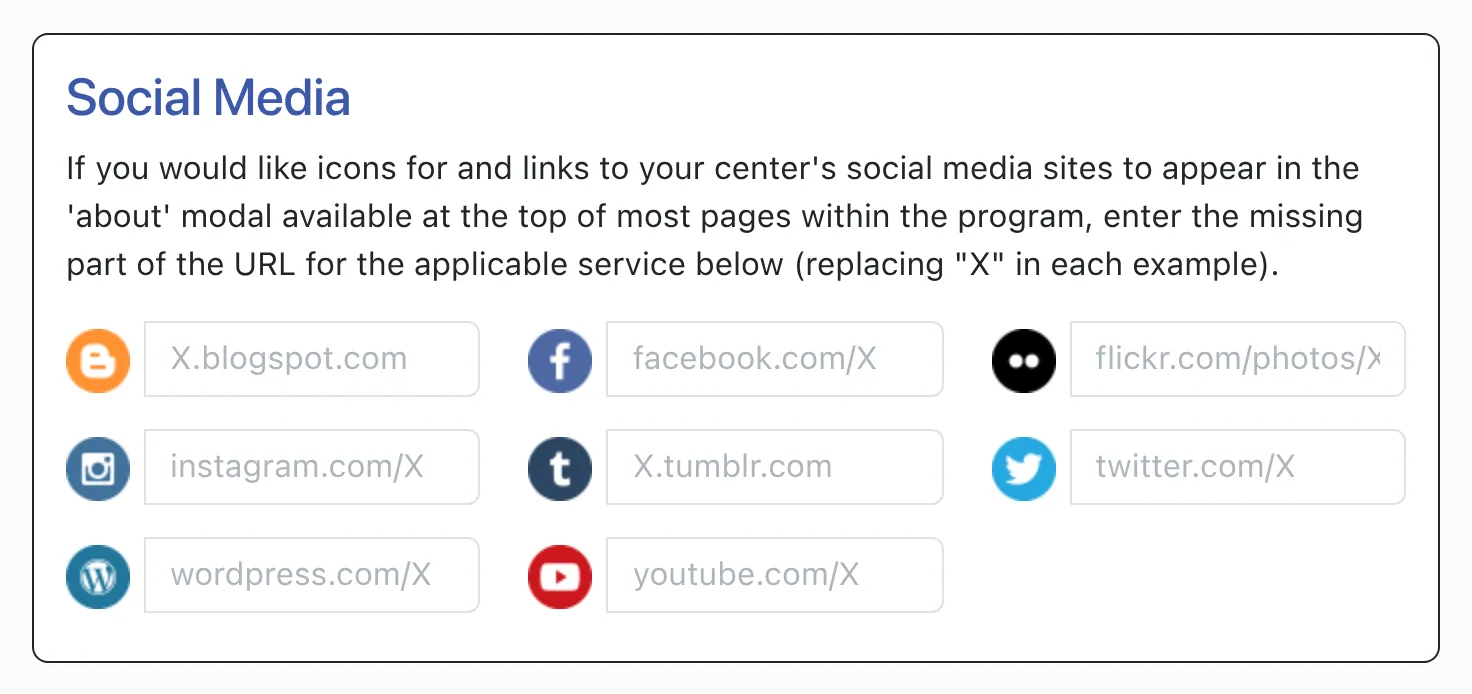
If you would like to add your center’s social media accounts to WCONLINE, simply enter the missing part of the URL (defined by “X”) for the applicable service in the appropriate row. For example, the Blogger row shows “X.blogspot.com.” If your Blogger account was at the URL “thewritecenter.blogspot.com,” then you would enter just “thewritecenter” in the Blogger row. Similarly, if you had an Instagram account that was accessed via the URL “instagram.com/ReadyToHelp,” then you would just enter “ReadyToHelp” in the Instagram row (since the Instagram row shows “instagram.com/X” and since you only enter the “X” portion of your web address).
Once you’ve saved your social media links, WCONLINE will automatically display the icons for those services at the bottom of the “about” modal. That modal is available via the “Welcome” menu when logged in or in the navigation menu when registering. It also contains the Center/System Title and the Center or System Description as also set in Global System Settings.
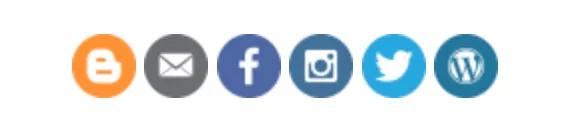
Clients can click on any of the social media icons to be taken to your page on the applicable social media site. Only the icons for the social media sites for which you’ve entered a value will appear.