Client and Record Management Overview
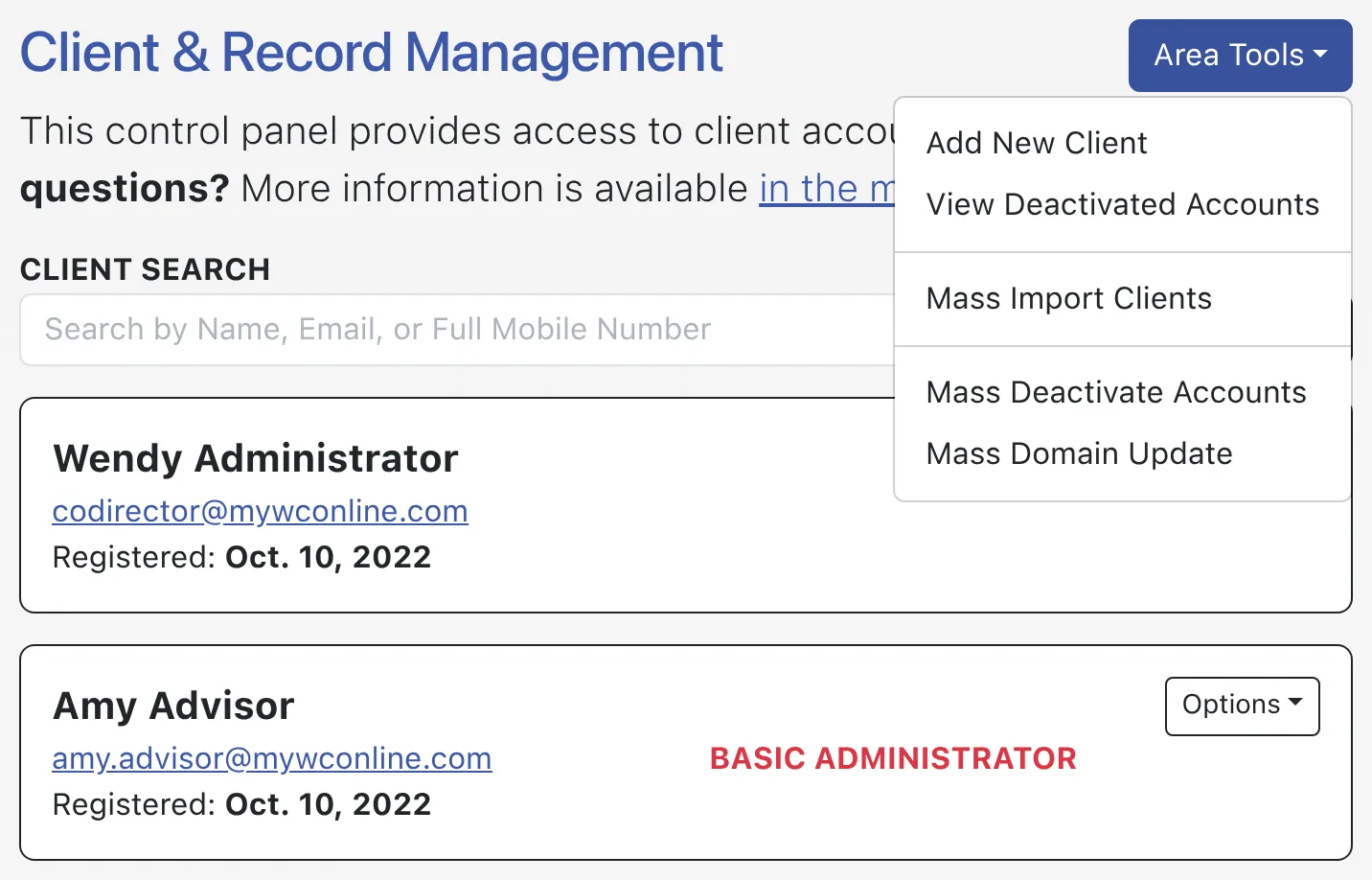
Once you open Client & Record Management (which you’ll find as the first option under “Administrative Options” at the top of the Welcome menu), you’ll see an overview of all individuals who have registered for accounts on your system. Within WCONLINE, everyone who logs in to the system has to create an account by filling out your registration form (as defined in Form Setup: Registration Form) or has to access an account that was created by an administrator for them. And, everyone who has an account is listed within this control panel. As with all control panels, be sure to hover over the question mark icons within the control panel in order to find suggestions and more information about each configuration option.
At the top of the overview, are links that allow you to access other areas of Client & Record Management or change the overview’s display:
- ACCOUNT OPTIONS: Available with the “Options” menu to the right of a given client account, these options let you set client-level options, modify a client’s profile, manage a client’s permissions, email the client, and view early alert notices.
- ADD NEW CLIENT: Available within the “Area Tools” menu at the top of the control panel, this tool lets you create an account for someone.
- MASS DEACTIVATE ACCOUNTS: Available within the “Area Tools” menu at the top of the control panel, this tool lets you deactivate a group of client accounts based on one of several criteria, such as when they last made an appointment or if they’ve graduated.
- MASS DOMAIN UPDATE: Available within the “Area Tools” menu at the top of the control panel, this tool lets you change the domains associated with all accounts—such as might be needed if your institution moved from @mycollege.edu to @myuniversity.edu domains.
- VIEW DEACTIVATED ACCOUNTS: Available within the “Area Tools” menu at the top of the control panel, this tool will only show accounts that have been deactivated either manually or as a result of a no-show or late cancelation policy violation (as set in Global System Settings).
- ACCOUNTS WITHOUT CREDITS: If Require Appointment Credits is set to YES in Global System Settings, then WCONLINE will display a shopping-cart-with-an-x icon next to accounts that have run out of credits.
Also near the top of the overview is a Client Search. If you enter part of a client’s first name, last name, email address, or first and last name and select the “search” button, WCONLINE will show just the clients whose name or email address contains the specified search string. You can enter just a partial name, such as “Jay” to see all clients with a name or email that contains “Jay” (such as “Jayson Smith,” “Rebekkah Sajay,” and “jay0209@institution.edu”). Selecting the “reset” button will return to the standard, default overview display.
If Use Mobile Text Messaging is set to YES in Global System Settings, administrators can also use the search tool to search for and, by editing the client’s account options via the “Options” menu, remove a client’s mobile number.

The rest of the overview is made up of individual listings for each client. Clients are displayed in alphabetical order by a client’s last name. Clients whose accounts have been deactivated either manually or as a result of a no-show or late cancelation policy violation (as set in Global System Settings) will be shown with a red border.
The display shows the client’s name in a larger, bold font followed by client-specific information:
NAME: This displays the client’s name. When selected, WCONLINE will show the client’s full registration profile in a modal window.
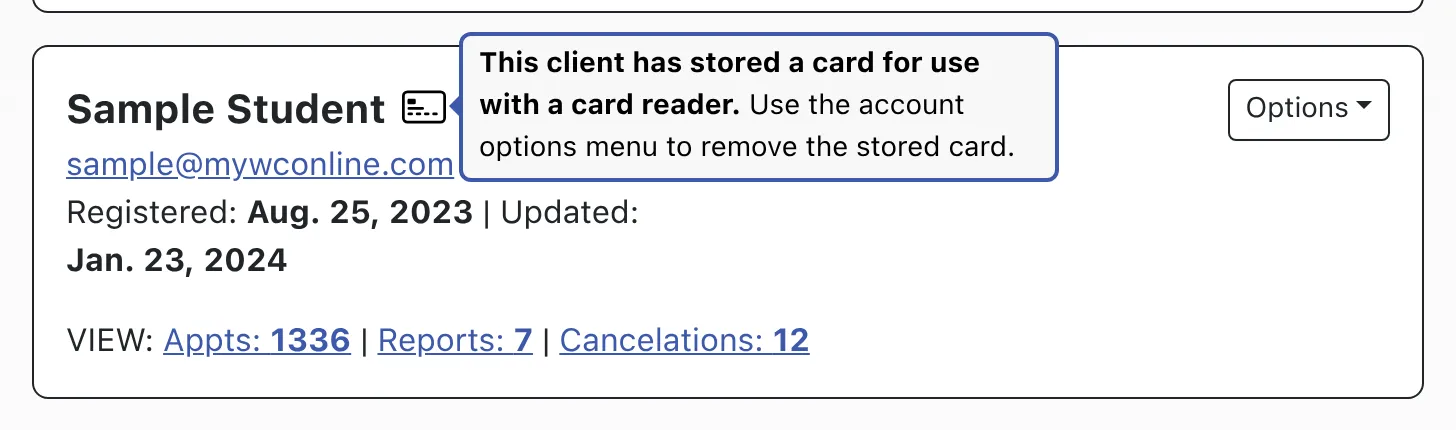
REMOVE ATTACHED CARD: If you’ve set up the card reader option for WCONLINE (by using the Enable Card Reader Support option in Global System Settings) and if a client has attached a card to their account, then WCONLINE will display an ID card icon next to the client’s name. Selecting this icon allows an administrator to remove the card that is attached to the client’s account. This lets the client add a new card the next time that they swipe or scan in to access WCONLINE.
EMAIL ADDRESS: This displays the client’s email address. When selected, WCONLINE loads your email program and opens a new email to that individual.
REGISTERED: This is the date that the client registered for an account on the system. If you require that clients activate their account after registering (as set via the Send Registration Email to Client setting in the “Registration-Specific Settings” section of Global System Settings), then this will display “waiting on activation” if the client has registered but hasn’t yet activated their account. In that case, you can manually activate the client’s account by editing their profile and setting the Deactivate Account option to “No.”
UPDATED: If a client has edited their profile (via Profile & Communication Options in the Welcome menu), then this will show the most recent date that the account was updated.
VIEW: This shows the number of appointments, client report forms, missed or no-show appointments, and canceled appointments that the client has had. Selecting one of the labels (such as “Appts: 22”) will take you to the Master Listings Report with the selected item displayed. If a client doesn’t have any appointments, client report forms, missed appointments, or canceled appointments, then the associated VIEW option will not be displayed.
ADMINISTRATIVE ACCESS LEVEL: If the client is currently listed as an administrator, then either “BASIC ADMINISTRATOR” or “FULL ADMINISTRATOR” will be displayed to the right of the client’s name. Administrative access is controlled via “Administrative Access Management” within Staff & Resource Management.
LAST LOGIN: If the client has logged into WCONLINE, then this will show the time and date of the last login as well as the IP address from which the client accessed WCONLINE.
LOCKED UNTIL: As a security precaution (and to prevent a type of hack known as a “brute force” hack), WCONLINE will lock an account for fifteen minutes if a client attempts to log in with the wrong password too many times in too short of a period. If a client’s account is locked for that reason, WCONLINE will display a “locked until” message within the client’s listing. A client can unlock their account by either resetting their password (using the reset tool on the login page) or waiting fifteen minutes before logging in again. An administrator can unlock a locked account by selecting PROFILE & PASSWORD from the client’s Options menu (the dropdown to the right of the client’s name in Client & Record Management) and changing the client’s password.
At the bottom of the schedule overview, you’ll also find two options that define how the overview itself is displayed:
PER PAGE: By default, the system shows five clients per page. If you would like to see ten or twenty-five clients per page, select the applicable number and the display will automatically update.
PAGE: If you have more clients than what can be displayed on a single page, selecting a number after this option will show you additional clients.